6 Hidden Google Messages Features You Should Know About
Google Messages is more than just a default texting app — it’s packed with powerful tools that many users overlook. Whether you’ve been using it for years or just switched from another app, these six features can transform how you communicate. From smarter messaging to desktop access, here’s what you’re probably missing.
- Enable RCS for richer conversations
- Schedule messages to send later
- Access Messages from your computer
- Use Magic Compose to write smarter
- Get reminded to reply
- Star important messages
How can I enable RCS for richer messaging?
RCS (Rich Communication Services) is the modern upgrade from SMS. It offers read receipts, typing indicators, high-resolution photo sharing, and group chat enhancements. To turn it on, open Google Messages, tap your profile picture (or the three-dot menu), go to Messages settings → RCS chats, and toggle Turn on RCS chats. Both you and your recipient need RCS enabled and a data connection. If you see a verification step, follow the prompts to link your phone number. Once active, you’ll notice a “Chat” indicator instead of “Text” in the compose bar. RCS also supports end-to-end encryption for one-on-one chats, keeping your conversations private. If your carrier supports it, this is the single best feature to unlock.
How do I schedule messages to send later?
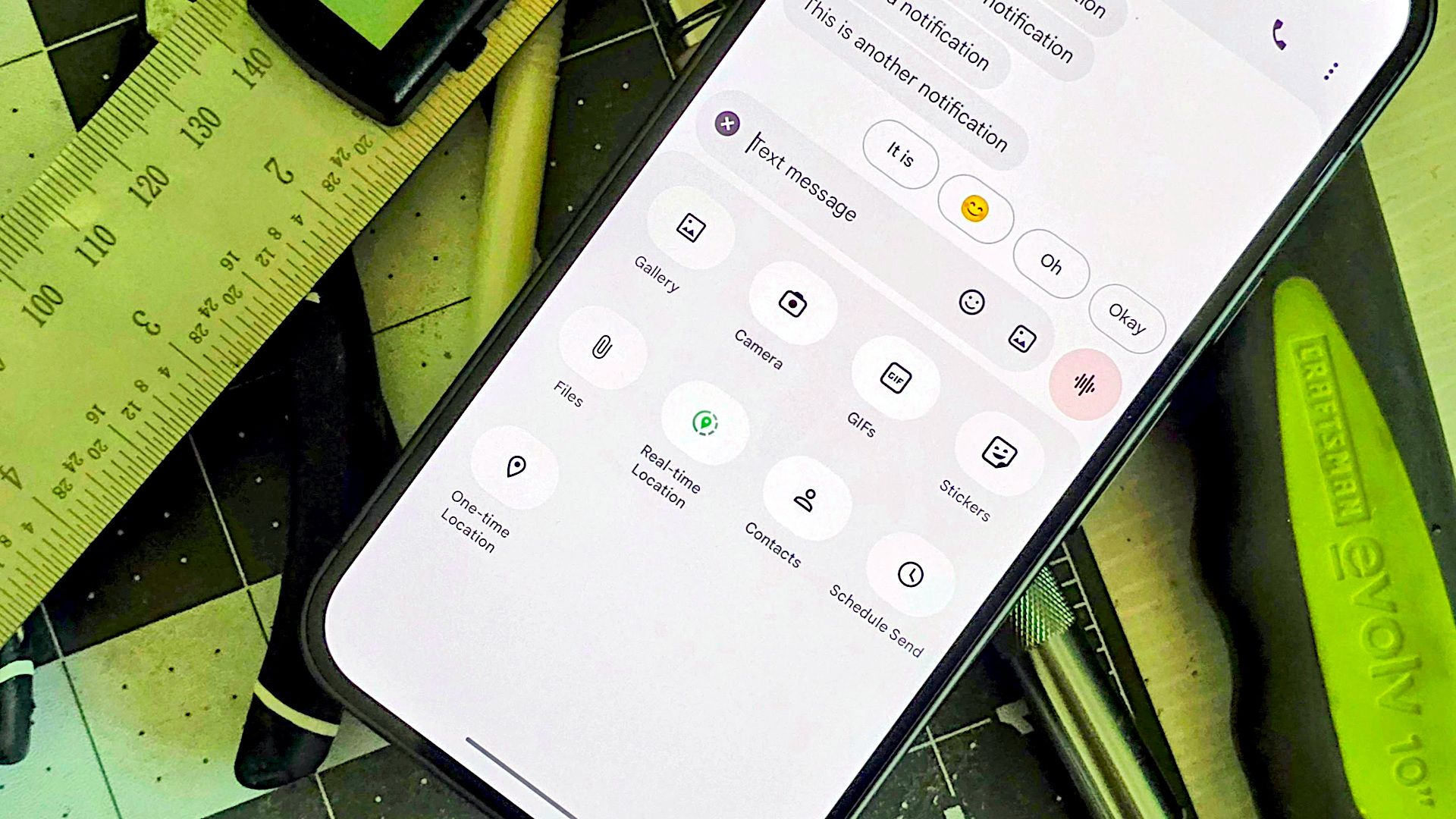
Sometimes you need to send a text at a specific time — a late-night thought, a birthday wish, or a work reminder. Google Messages lets you schedule outgoing messages easily. Compose your message as usual, then long-press the send button (the paper plane icon). A clock icon appears; tap it and choose a date and time. The message will be held in a Scheduled folder until it sends. You can edit or cancel scheduled messages before delivery by opening the conversation, tapping the three-dot menu, and selecting View scheduled. This feature is perfect for avoiding awkward timing or ensuring important messages arrive exactly when needed.
How can I access Google Messages from my computer?
Don’t want to pick up your phone? Use Google Messages for web. Go to messages.google.com/web on your computer’s browser. On your phone, open the Messages app, tap the three-dot menu, then Device pairing → QR code scanner. Scan the code on your computer screen. Your conversations will sync instantly, and you can send and receive texts, view media, and even see notifications. The connection stays active until you manually disconnect or clear browser data. This is a huge time-saver for typing long replies, sharing files, or simply multitasking without your phone.
What is Magic Compose and how does it work?
Magic Compose is an AI-powered feature that helps you rewrite messages in different tones. After typing a message, tap the Magic Compose icon (a sparkling pen) above the keyboard. You’ll see options like Remix, Excited, Professional, or Poetry. Choose one, and the app automatically rephrases your text. You can edit the result before sending. This feature is excellent for adjusting formality or adding flair — making a boring “OK” sound enthusiastic or a complaint sound polite. Magic Compose uses on-device AI for privacy (if supported), so your texts aren’t sent to a server. It’s available in select regions and requires RCS to be enabled. Check your Messages settings to see if it appears.

How do I use Nudge reminders to reply to important messages?
Nudge is a subtle but helpful feature that reminds you to reply to messages you might have forgotten. When you receive a text and don’t respond within a certain time, Google Messages can prompt you with a small notification: “Did you forget to reply?” Additionally, if someone has been left on read for a while, you’ll see a note in the conversation suggesting a reply. To turn Nudge on, go to Messages settings → Suggestions → Nudge and toggle Nudge for reply reminders. You can also enable nudges for checking in on contacts you haven’t messaged lately. This feature keeps your conversations active without being intrusive, especially for busy users.
How can I star important messages for easy retrieval?
Starring messages helps you quickly find critical info — addresses, passwords, or special moments. In any conversation, long-press a message, then tap the star icon at the top. The message will display a yellow star. To view all starred messages, open the app’s search bar and scroll down to Starred, or tap your profile picture and go to Starred messages. You can also search for “starred:true” in the search box. To unstar, long-press the starred message and tap the star again. This feature works across all conversations, so you don’t need to remember which chat had the info. It’s a simple but powerful way to organize your texts.